 Tirsvad
9565ebe66d
Tirsvad
9565ebe66d
Wiki pages in English, Danish and Bahasa Malaysia for the home page and the
three lecture steps, with a sidebar and the screenshots; README with the
screenshots table and wiki links; review RC-011.

Task: MIL-003#1
27 lines
1.2 KiB
Markdown
27 lines
1.2 KiB
Markdown
**English** · [Dansk](Step-1-Link-Click-da) · [Bahasa Malaysia](Step-1-Link-Click-ms)
|
|
|
|
# Step 1: Click a link by its text
|
|
|
|
## The lecture
|
|
|
|
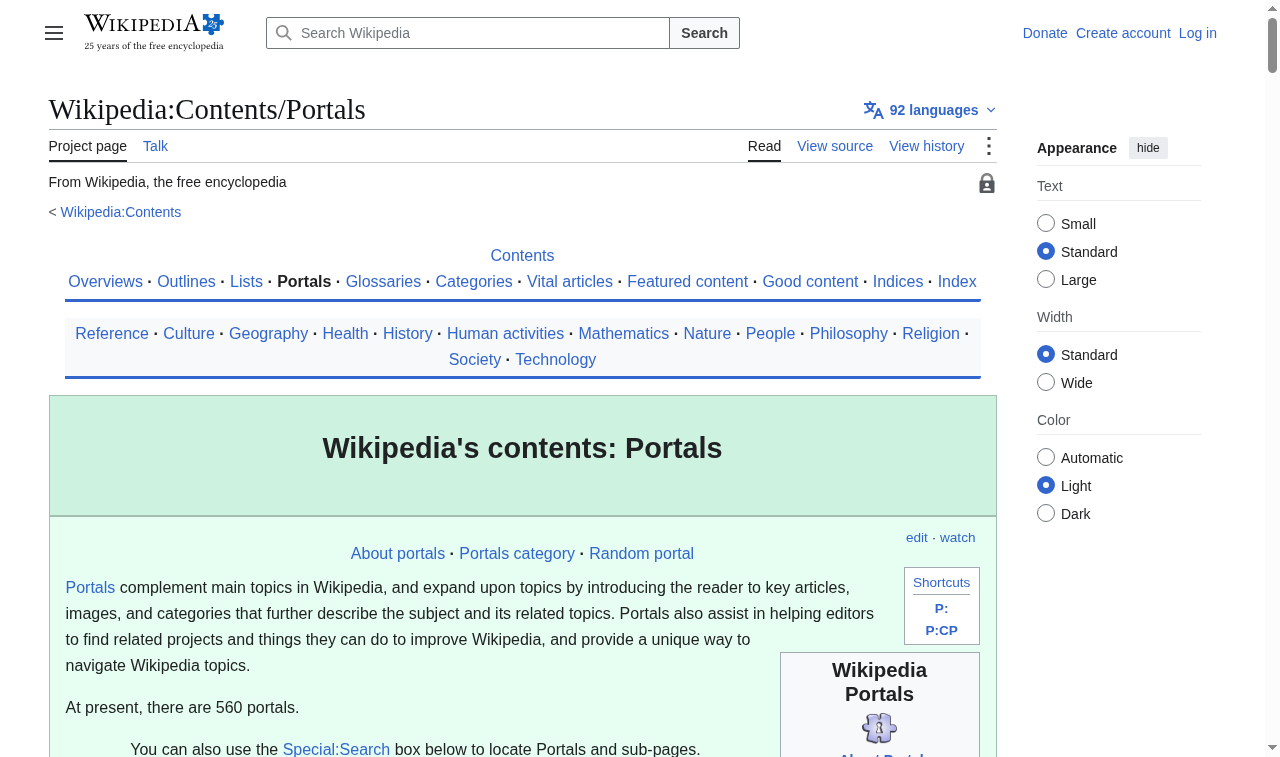
After a recap of how to find elements, the lecture shows that an anchor tag can be clicked with the `.click()` method, so the browser navigates by itself instead of by a mouse click. It then introduces a shortcut for links: find the link by the text it displays, here "Content portals".
|
|
|
|
## The code
|
|
|
|
```python
|
|
def click_link_by_text(browser, link_text=LINK_TEXT_CONTENT_PORTALS):
|
|
browser.find_element(BY_LINK_TEXT, link_text).click()
|
|
```
|
|
|
|
`BY_LINK_TEXT` is the same value as Selenium's `By.LINK_TEXT`; a unit test guards that. The link text lives in `constants.py`.
|
|
|
|
## What the browser shows
|
|
|
|
|
|
|
|
## What we gained
|
|
|
|
- A link is an element like any other: find it, then call `.click()`.
|
|
- `By.LINK_TEXT` finds a link by its visible text, which is simpler than a CSS selector.
|
|
- After the click the browser has moved to a new page; the next step starts from there.
|