Lecture Steps
🌐 English · Dansk · Bahasa Malaysia
The lecture builds interaction.py in seven steps. Each step below has its screenshot, the code as it stands after the step, and what we gained.
Step 1: Create interaction.py
# interaction.py
What we gained: a place for the script. One small file with one purpose is easier to read and to compare with other solutions than code spread over many files.
Step 2: Import Selenium
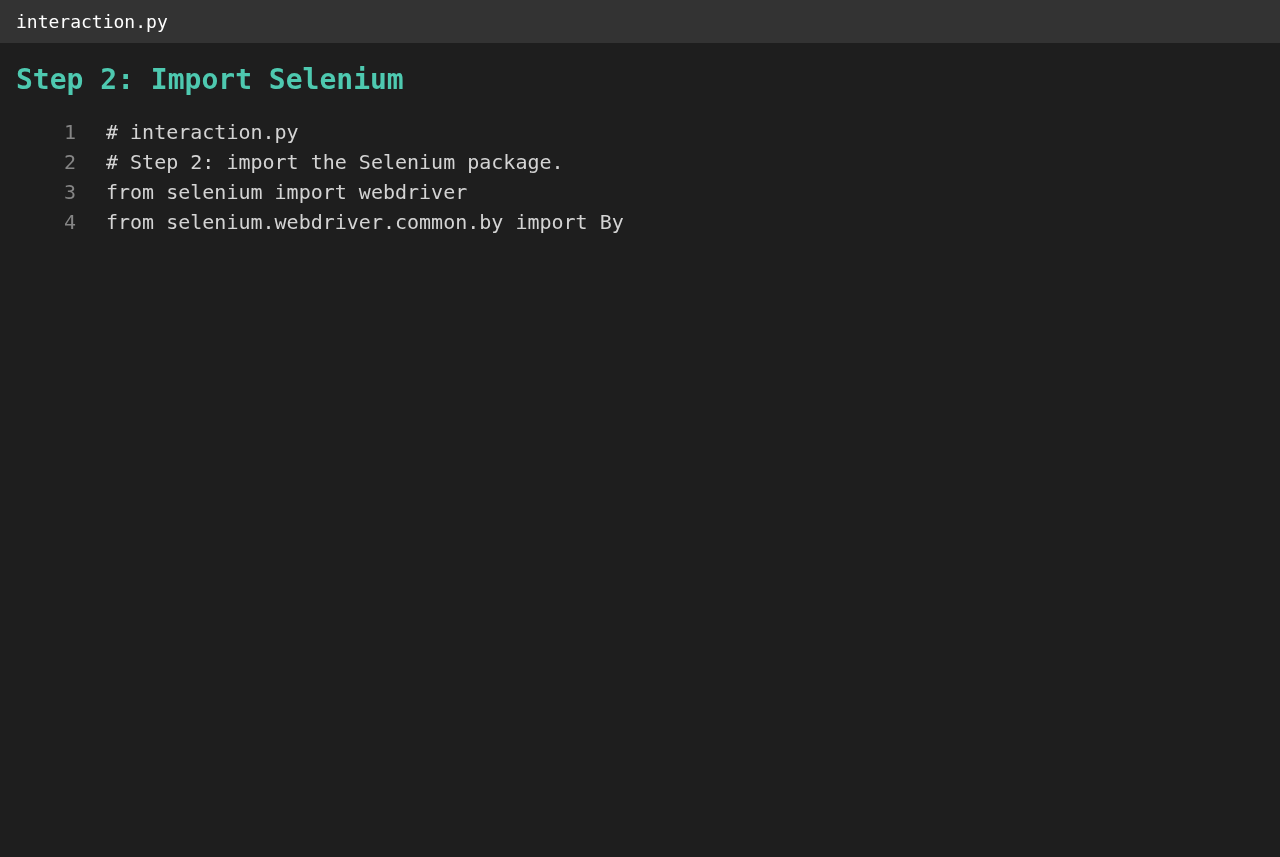
from selenium import webdriver
from selenium.webdriver.common.by import By
What we gained: Selenium is a package that controls a real browser from Python. webdriver starts and drives the browser; By says how to look for an element (by CSS selector, id, name and so on). It is a third-party package, so it must be installed in the .venv first.
Step 3: Initialise the Chrome driver
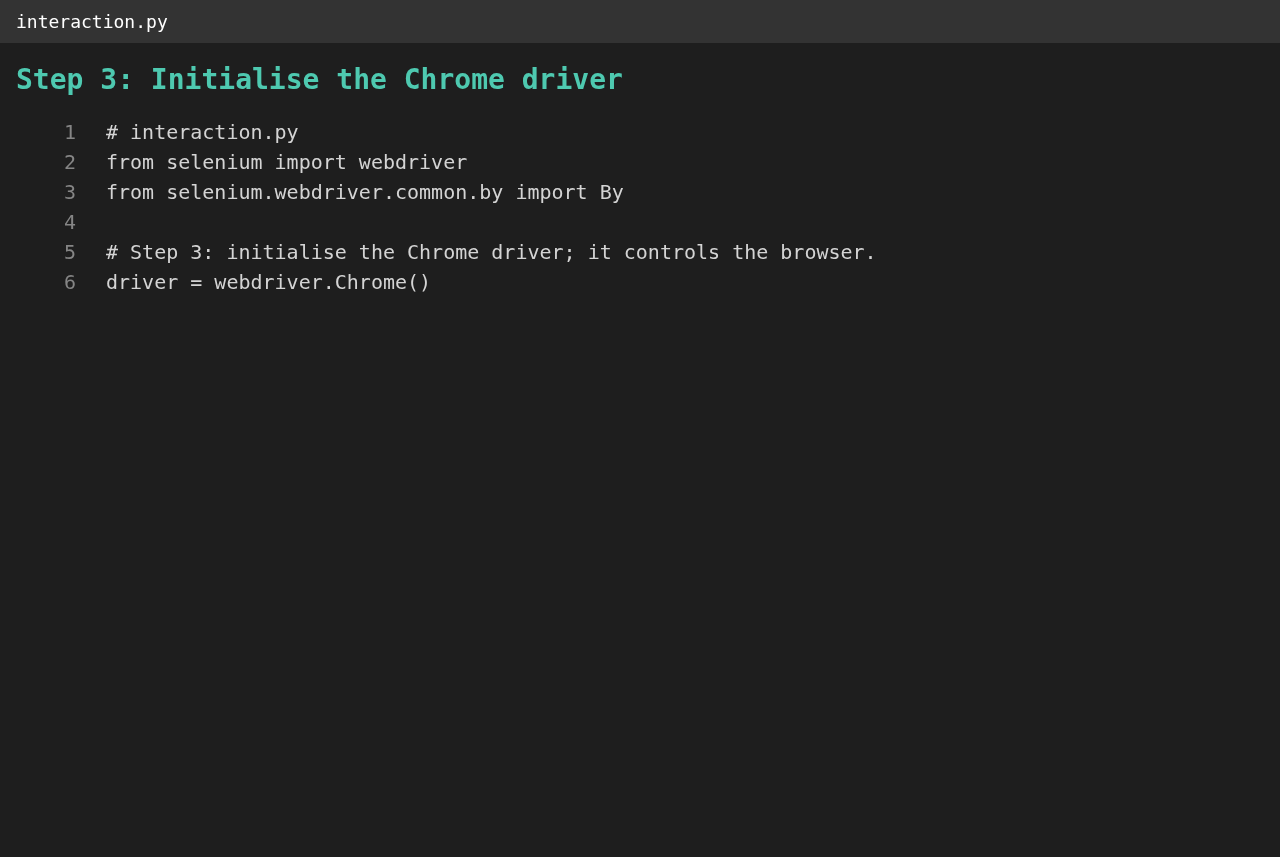
driver = webdriver.Chrome()
What we gained: the driver is the object through which the script controls Chrome: opening pages, finding elements and closing the browser. Creating it opens a real browser window. In our project this is create_driver(), which can also start Chrome without a window (--headless) for Docker.
Step 4: Navigate to Wikipedia with get()
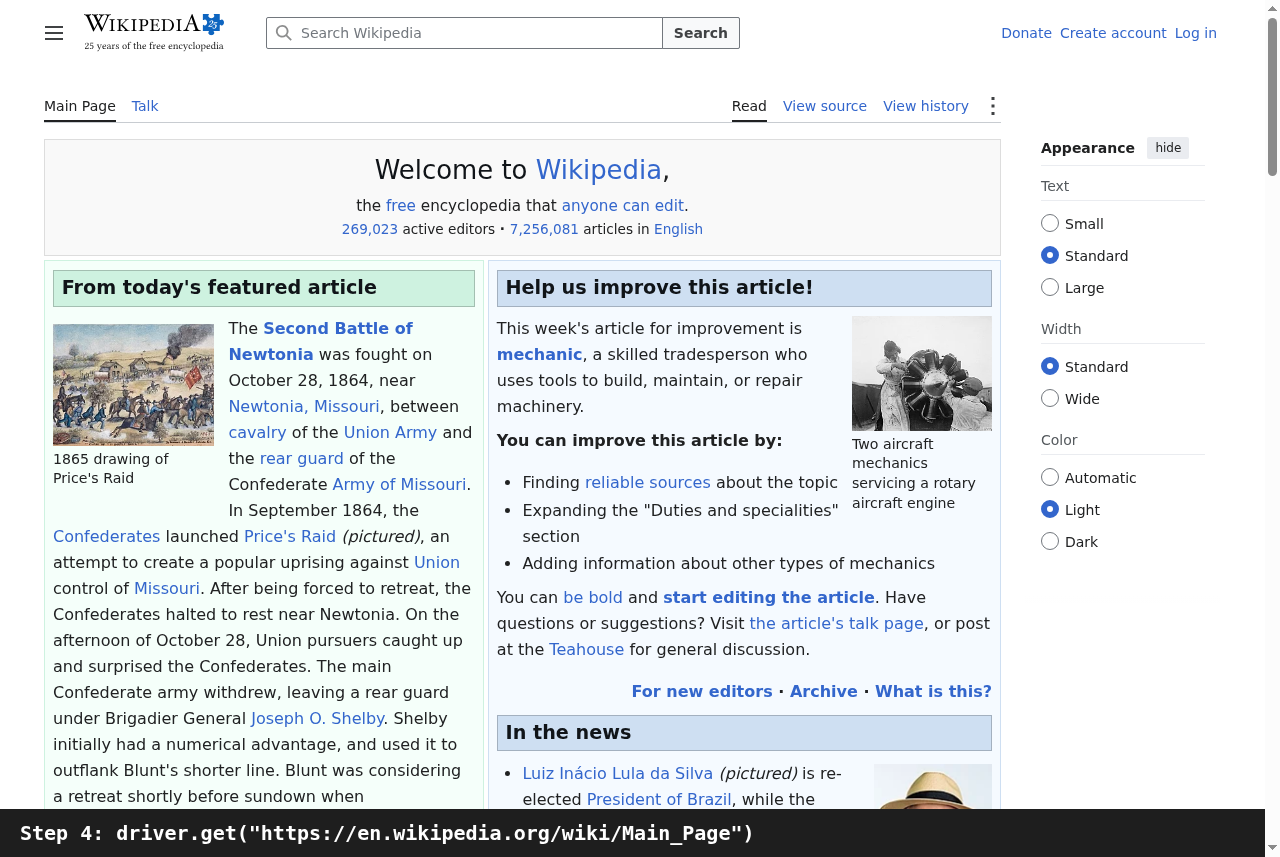
driver.get("https://en.wikipedia.org/wiki/Main_Page")
What we gained: get() loads a URL and waits until the page has loaded. The URL is a constant (WIKIPEDIA_MAIN_PAGE_URL in constants.py), so it is written in one place. In our project this is open_main_page().
Step 5: Identify the HTML element
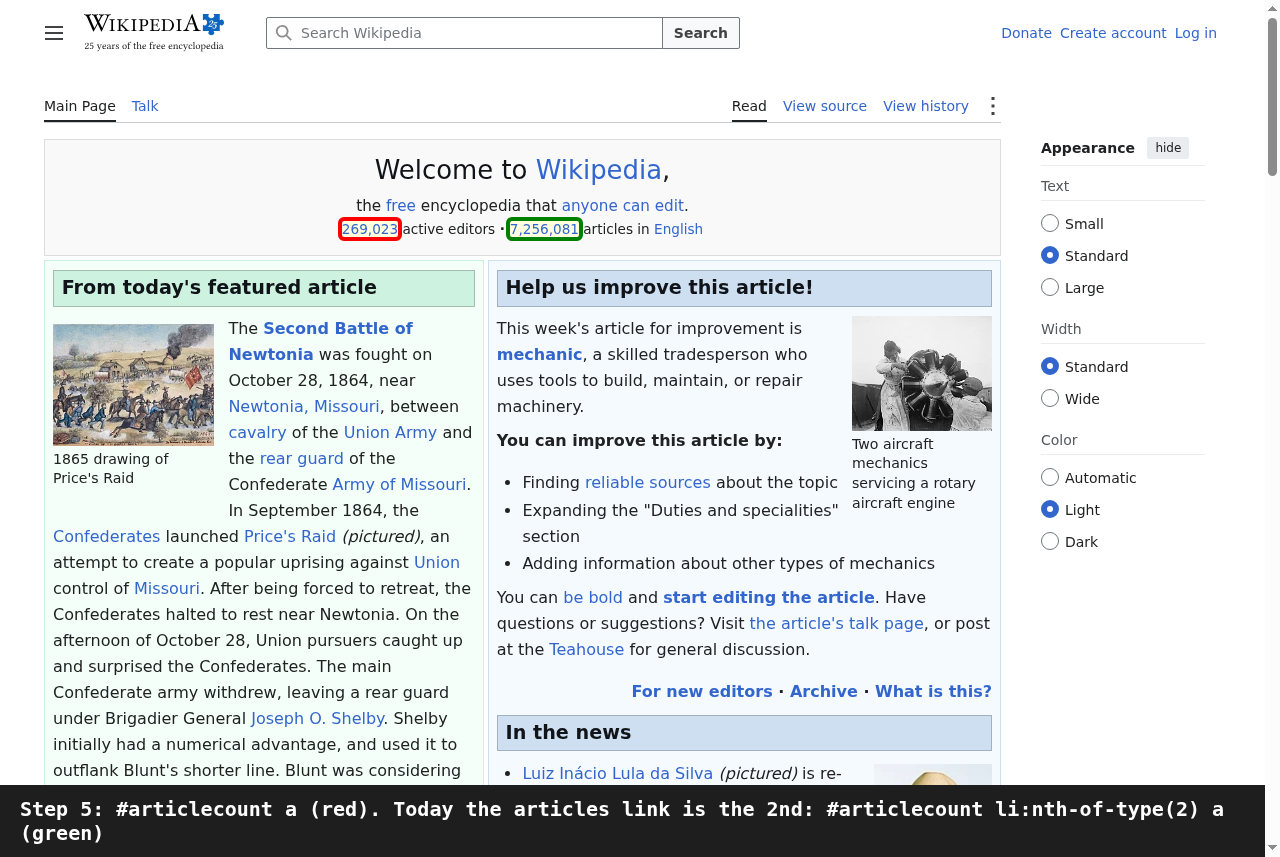
# The article count is the anchor (a) inside the div whose id is "articlecount":
#     #articlecount a
What we gained: before scraping, look at the page's HTML (the browser's developer tools show it) and find an element that can be told apart reliably. An id is unique on a page, so #articlecount is a good anchor for a CSS selector, and a selects the link inside it.
A lesson from 2026: Wikipedia has since added a second link in that div. The first match (red in the screenshot) is now the number of active editors, and the article count (green) is the first link of the second list item: #articlecount li:nth-of-type(2) a. The program uses that selector (ARTICLE_COUNT_SELECTOR) and keeps the lecture's selector as LECTURE_SELECTOR. Pages change; a selector must be checked against the page, and the end to end test checks that the printed number is at least one million.
Step 6: Find the element and print its text
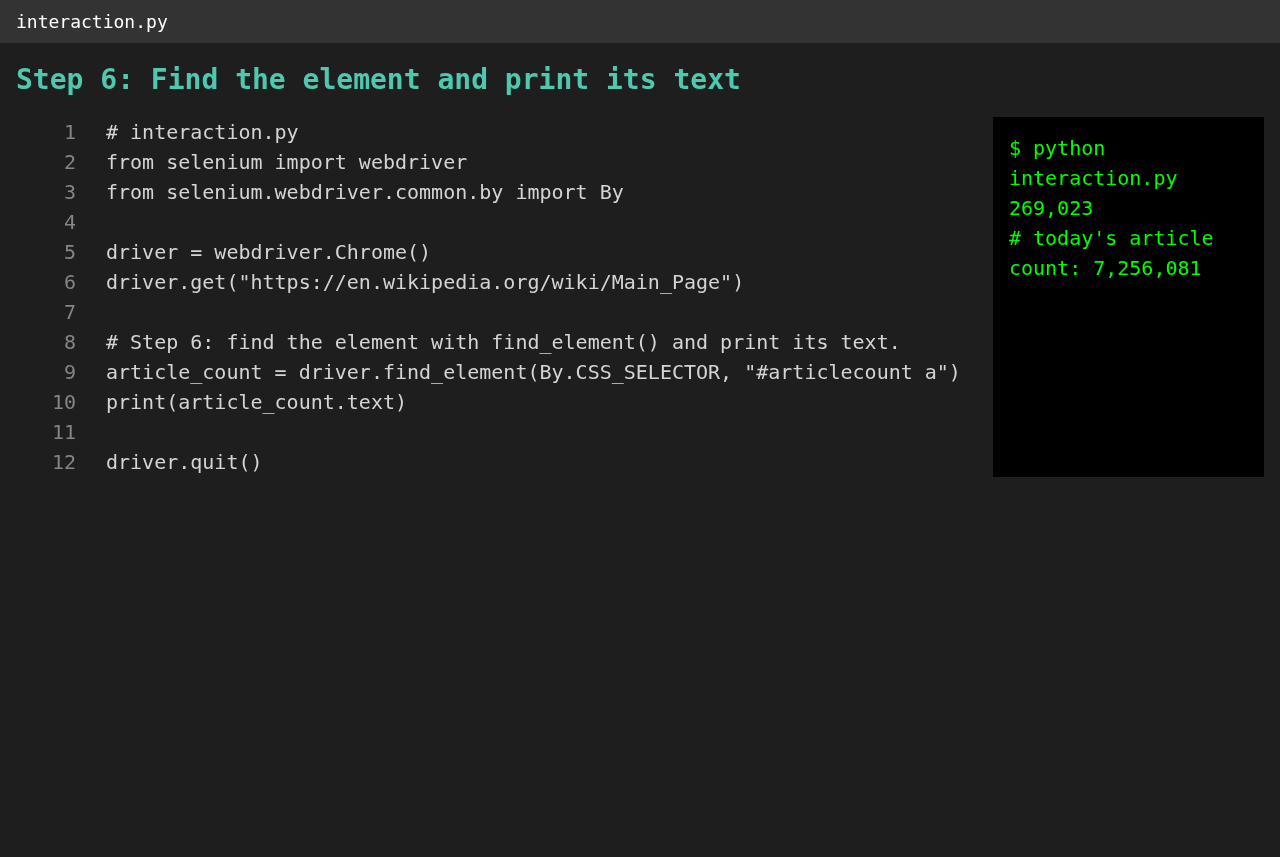
article_count = driver.find_element(By.CSS_SELECTOR, "#articlecount a")
print(article_count.text)

driver.quit()
What we gained: find_element returns the first element that matches and .text gives the text a visitor sees. driver.quit() closes the browser; our main() does it in a finally block so the browser closes even when something fails. The terminal panel in the screenshot shows what the lecture selector returns today and, below it, the real article count.
Step 7: What comes next
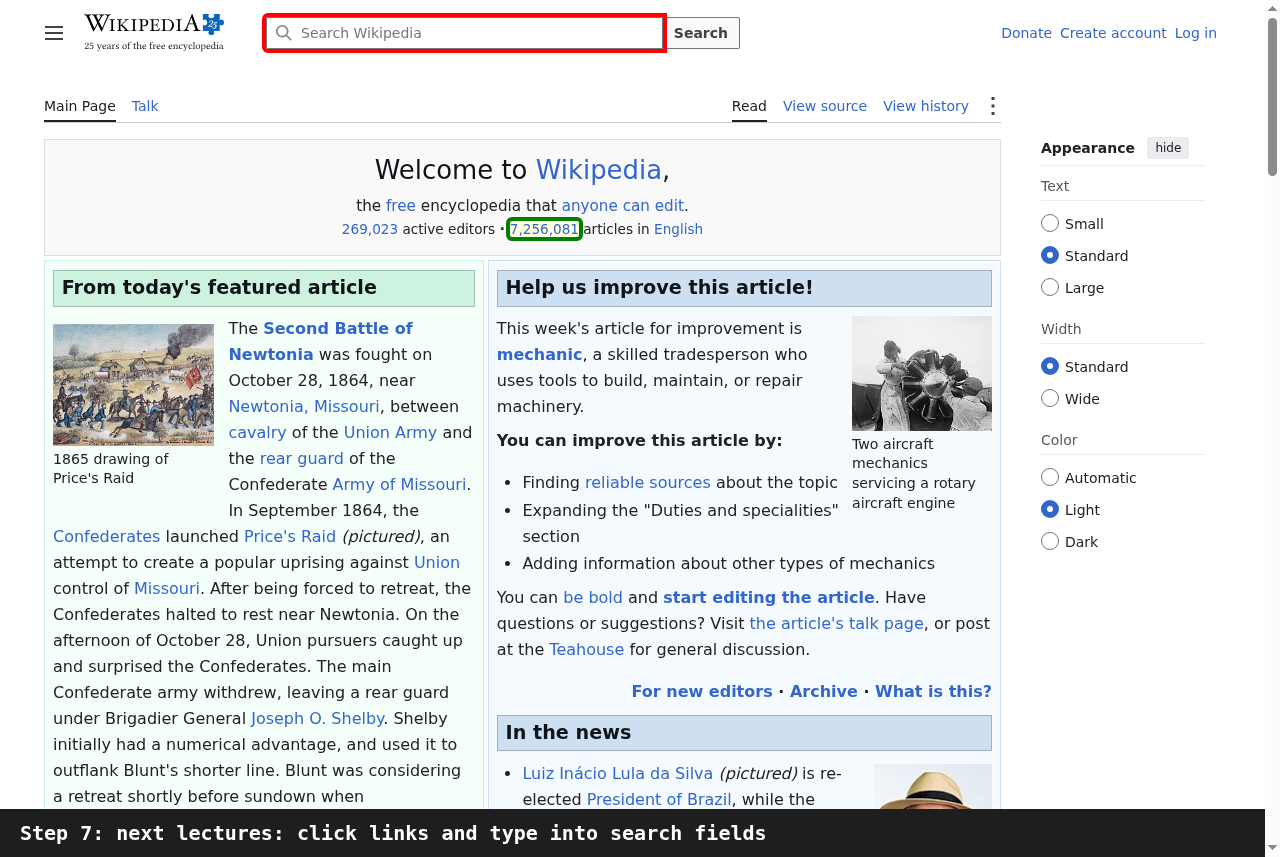
# article_count.click()                              # click a link
# search = driver.find_element(By.NAME, "search")    # type into a search field
What we gained: reading is only half of it. The next lectures click links and type into fields such as the search box (outlined in the screenshot). The same two ideas carry over: find the element with a selector, then act on it.