MIL-005: Add wiki in English, Danish and Bahasa Malaysia #27
@@ -0,0 +1,38 @@
|
|||||||
|
# Publish the project's wiki pages to the git host's wiki.
|
||||||
|
#
|
||||||
|
# On a push to main that changes docs/wiki/, this workflow calls the reusable
|
||||||
|
# workflow of TirSystem/github-action, which copies the Markdown pages of
|
||||||
|
# docs/wiki/ to the wiki of this repository (framework/process/wiki.md says
|
||||||
|
# what the folder holds: English and the PO language as a minimum).
|
||||||
|
#
|
||||||
|
# INSTALLING THIS FILE IS THE OPT-IN. There is no marker file. A project that
|
||||||
|
# does not copy it publishes nothing.
|
||||||
|
#
|
||||||
|
# Copy it to .gitea/workflows/publish-wiki.yml. Then:
|
||||||
|
# 1. Create the secret TOKEN_FOR_GITEA_WIKI in the organization of the
|
||||||
|
# repository: a Gitea token with scope write:repository for a user that
|
||||||
|
# can write this repository (see guides/credentials.md of github-action).
|
||||||
|
# 2. Enable the wiki in the repository settings.
|
||||||
|
# 3. Keep @v1, or pin the exact release tag together with tools-ref.
|
||||||
|
# A runner must be registered for the repository (or its organization).
|
||||||
|
#
|
||||||
|
# prune: "true" deletes wiki pages that are not in docs/wiki/, so the wiki
|
||||||
|
# always equals the folder. Leave it "false" to keep hand-written pages.
|
||||||
|
|
||||||
|
name: Publish wiki
|
||||||
|
|
||||||
|
on:
|
||||||
|
push:
|
||||||
|
branches: [ main ]
|
||||||
|
paths:
|
||||||
|
- "docs/wiki/**"
|
||||||
|
workflow_dispatch:
|
||||||
|
|
||||||
|
jobs:
|
||||||
|
wiki:
|
||||||
|
uses: TirSystem/git-workflows/.gitea/workflows/publish-wiki-pages.yml@v1
|
||||||
|
with:
|
||||||
|
wiki_dir: docs/wiki
|
||||||
|
prune: "true"
|
||||||
|
secrets:
|
||||||
|
TOKEN_FOR_GITEA_WIKI: ${{ secrets.TOKEN_FOR_GITEA_WIKI }}
|
||||||
@@ -0,0 +1,31 @@
|
|||||||
|
# Test i Docker
|
||||||
|
|
||||||
|
🌐 [English](Docker-Testing) · **Dansk** · [Bahasa Malaysia](Docker-Testing-ms)
|
||||||
|
|
||||||
|
## Hvorfor Docker
|
||||||
|
|
||||||
|
Et script, der styrer en browser, åbner vinduer og bruger musens og tastaturets fokus på den maskine, det kører på. For at holde udviklerens skrivebord frit kører end to end-kørslen og skærmbillederne i en Docker-container med headless Chromium. Enhedstest kræver ingen browser og kører på værten.
|
||||||
|
|
||||||
|
## Byg og kør
|
||||||
|
|
||||||
|
```bash
|
||||||
|
docker build -t scraping-wiki-e2e .
|
||||||
|
docker run --rm -v "$(pwd)/results:/results" scraping-wiki-e2e
|
||||||
|
```
|
||||||
|
|
||||||
|
Containeren rapporterer gennem filer i `results/`:
|
||||||
|
|
||||||
|
| Fil | Indhold |
|
||||||
|
| --- | --- |
|
||||||
|
| `e2e.log` | Det samlede output fra testen og skærmbilledoptagelsen |
|
||||||
|
| `exit-code.txt` | `0`, når alt bestod |
|
||||||
|
| `screenshots/` | Én PNG for hvert af lektionens syv trin |
|
||||||
|
|
||||||
|
## Hvad der kører
|
||||||
|
|
||||||
|
1. `tests/e2e/test_interaction_e2e.py` kører `python -m scraping_wiki.interaction --headless` og kontrollerer, at ét tal udskrives, og at det er mindst en million (artikeltallet, ikke de aktive redaktører).
|
||||||
|
2. `tests/e2e/capture_screenshots.py` viser koden fra trin 1 til 3 som en editorside, tager rigtige skærmbilleder af Wikipedias forside til trin 4, 5 og 7 og viser det rigtige output i trin 6.
|
||||||
|
|
||||||
|
## Hold hemmeligheder ude
|
||||||
|
|
||||||
|
Filen `.dockerignore` holder `.env`, `.venv` og `.git` ude af imaget. Projektet læser eller importerer aldrig `.env`-filen.
|
||||||
@@ -0,0 +1,31 @@
|
|||||||
|
# Ujian dalam Docker
|
||||||
|
|
||||||
|
🌐 [English](Docker-Testing) · [Dansk](Docker-Testing-da) · **Bahasa Malaysia**
|
||||||
|
|
||||||
|
## Mengapa Docker
|
||||||
|
|
||||||
|
Skrip yang mengawal pelayar membuka tetingkap dan menggunakan fokus tetikus dan papan kekunci mesin tempat ia berjalan. Untuk memastikan desktop pembangun bebas, larian end to end dan tangkapan skrin dijalankan dalam bekas Docker dengan Chromium tanpa kepala (headless). Ujian unit tidak memerlukan pelayar dan dijalankan pada hos.
|
||||||
|
|
||||||
|
## Bina dan jalankan
|
||||||
|
|
||||||
|
```bash
|
||||||
|
docker build -t scraping-wiki-e2e .
|
||||||
|
docker run --rm -v "$(pwd)/results:/results" scraping-wiki-e2e
|
||||||
|
```
|
||||||
|
|
||||||
|
Bekas melaporkan melalui fail dalam `results/`:
|
||||||
|
|
||||||
|
| Fail | Kandungan |
|
||||||
|
| --- | --- |
|
||||||
|
| `e2e.log` | Output gabungan ujian dan rakaman tangkapan skrin |
|
||||||
|
| `exit-code.txt` | `0` apabila semuanya lulus |
|
||||||
|
| `screenshots/` | Satu PNG bagi setiap tujuh langkah kuliah |
|
||||||
|
|
||||||
|
## Apa yang dijalankan
|
||||||
|
|
||||||
|
1. `tests/e2e/test_interaction_e2e.py` menjalankan `python -m scraping_wiki.interaction --headless` dan menyemak bahawa satu nombor dicetak dan ia sekurang-kurangnya satu juta (bilangan artikel, bukan penyunting aktif).
|
||||||
|
2. `tests/e2e/capture_screenshots.py` memaparkan kod langkah 1 hingga 3 sebagai halaman penyunting, mengambil tangkapan skrin sebenar halaman utama Wikipedia untuk langkah 4, 5 dan 7, dan menunjukkan output sebenar pada langkah 6.
|
||||||
|
|
||||||
|
## Menyimpan rahsia di luar
|
||||||
|
|
||||||
|
Fail `.dockerignore` mengekalkan `.env`, `.venv` dan `.git` di luar imej. Projek ini tidak pernah membaca atau mengimport fail `.env`.
|
||||||
@@ -0,0 +1,31 @@
|
|||||||
|
# Docker Testing
|
||||||
|
|
||||||
|
🌐 **English** · [Dansk](Docker-Testing-da) · [Bahasa Malaysia](Docker-Testing-ms)
|
||||||
|
|
||||||
|
## Why Docker
|
||||||
|
|
||||||
|
A script that drives a browser opens windows and uses the mouse and keyboard focus of the machine it runs on. To keep the developer's desktop free, the end to end run and the screenshots run in a Docker container with headless Chromium. Unit tests need no browser and run on the host.
|
||||||
|
|
||||||
|
## Build and run
|
||||||
|
|
||||||
|
```bash
|
||||||
|
docker build -t scraping-wiki-e2e .
|
||||||
|
docker run --rm -v "$(pwd)/results:/results" scraping-wiki-e2e
|
||||||
|
```
|
||||||
|
|
||||||
|
The container reports through files in `results/`:
|
||||||
|
|
||||||
|
| File | Content |
|
||||||
|
| --- | --- |
|
||||||
|
| `e2e.log` | The combined output of the test and the screenshot capture |
|
||||||
|
| `exit-code.txt` | `0` when everything passed |
|
||||||
|
| `screenshots/` | One PNG for each of the seven lecture steps |
|
||||||
|
|
||||||
|
## What runs
|
||||||
|
|
||||||
|
1. `tests/e2e/test_interaction_e2e.py` runs `python -m scraping_wiki.interaction --headless` and checks that one number is printed and that it is at least one million (the article count, not the active editors).
|
||||||
|
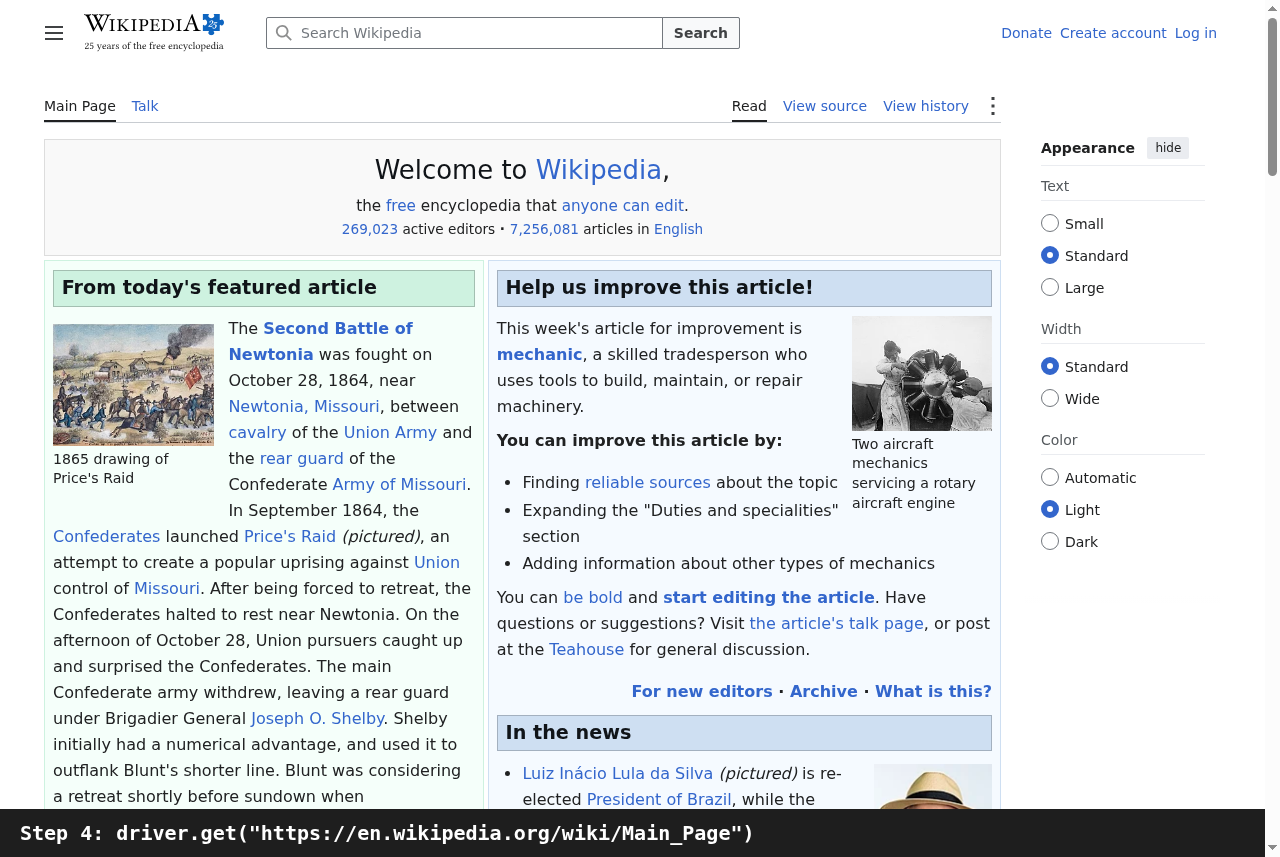
2. `tests/e2e/capture_screenshots.py` renders the code of steps 1 to 3 as an editor page, takes real screenshots of the Wikipedia main page for steps 4, 5 and 7, and shows the real output in step 6.
|
||||||
|
|
||||||
|
## Keeping secrets out
|
||||||
|
|
||||||
|
The `.dockerignore` file keeps `.env`, `.venv` and `.git` out of the image. The project never reads or imports the `.env` file.
|
||||||
@@ -0,0 +1,24 @@
|
|||||||
|
# Scraping Wiki
|
||||||
|
|
||||||
|
🌐 [English](Home) · **Dansk** · [Bahasa Malaysia](Home-ms)
|
||||||
|
|
||||||
|
Et lille Python-projekt fra Udemys *100 Days of Code: The Complete Python Pro Bootcamp*. Det styrer Chrome med Selenium, åbner Wikipedias forside og udskriver antallet af artikler. Denne wiki forklarer, hvad hvert trin i lektionen lærte os, med et skærmbillede af hvert trin.
|
||||||
|
|
||||||
|
| Side | Læs den, når du vil |
|
||||||
|
| --- | --- |
|
||||||
|
| [Lektionens trin](Lecture-Steps-da) | Se de syv trin i lektionen, hvert med skærmbillede, kode og det, vi lærte |
|
||||||
|
| [Opsætning og kørsel](Setup-and-Run-da) | Oprette et lokalt `.venv`, opgradere pip, installere, køre scriptet og køre testene |
|
||||||
|
| [Test i Docker](Docker-Testing-da) | Forstå, hvorfor browseren kun kører i Docker, og hvordan skærmbillederne laves |
|
||||||
|
|
||||||
|
## Kort fortalt
|
||||||
|
|
||||||
|
- Python 3.13 eller nyere; `selenium` er den eneste afhængighed ved kørsel.
|
||||||
|
- Scriptet er `interaction.py`; konstanterne ligger i `constants.py`.
|
||||||
|
- Enhedstestene starter ingen browser; end to end-kørslen og skærmbillederne kører i en Docker-container.
|
||||||
|
- Repositoriet: [kildekode og README](https://git.tirsystem.com/Tirsvad-Udemy-100-days-of-code/048-scrapping-wiki).
|
||||||
|
|
||||||
|
```bash
|
||||||
|
python -m scraping_wiki.interaction
|
||||||
|
```
|
||||||
|
|
||||||
|
Udskriften er én linje, for eksempel `7,256,081`.
|
||||||
@@ -0,0 +1,24 @@
|
|||||||
|
# Scraping Wiki
|
||||||
|
|
||||||
|
🌐 [English](Home) · [Dansk](Home-da) · **Bahasa Malaysia**
|
||||||
|
|
||||||
|
Projek Python kecil daripada kursus Udemy *100 Days of Code: The Complete Python Pro Bootcamp*. Ia mengawal Chrome dengan Selenium, membuka halaman utama Wikipedia dan mencetak bilangan artikel. Wiki ini menerangkan apa yang dipelajari pada setiap langkah kuliah, dengan tangkapan skrin bagi setiap langkah.
|
||||||
|
|
||||||
|
| Halaman | Baca apabila anda mahu |
|
||||||
|
| --- | --- |
|
||||||
|
| [Langkah Kuliah](Lecture-Steps-ms) | Melihat tujuh langkah kuliah, setiap satu dengan tangkapan skrin, kod dan apa yang kita dapat |
|
||||||
|
| [Persediaan dan Jalankan](Setup-and-Run-ms) | Mencipta `.venv` setempat, menaik taraf pip, memasang, menjalankan skrip dan menjalankan ujian |
|
||||||
|
| [Ujian dalam Docker](Docker-Testing-ms) | Memahami mengapa pelayar hanya dijalankan dalam Docker dan bagaimana tangkapan skrin dibuat |
|
||||||
|
|
||||||
|
## Sepintas lalu
|
||||||
|
|
||||||
|
- Python 3.13 atau lebih baharu; `selenium` ialah satu-satunya kebergantungan semasa larian.
|
||||||
|
- Skripnya ialah `interaction.py`; pemalar berada dalam `constants.py`.
|
||||||
|
- Ujian unit tidak memulakan pelayar; larian end to end dan tangkapan skrin dijalankan dalam bekas Docker.
|
||||||
|
- Repositori: [kod sumber dan README](https://git.tirsystem.com/Tirsvad-Udemy-100-days-of-code/048-scrapping-wiki).
|
||||||
|
|
||||||
|
```bash
|
||||||
|
python -m scraping_wiki.interaction
|
||||||
|
```
|
||||||
|
|
||||||
|
Outputnya satu baris, contohnya `7,256,081`.
|
||||||
@@ -0,0 +1,24 @@
|
|||||||
|
# Scraping Wiki
|
||||||
|
|
||||||
|
🌐 **English** · [Dansk](Home-da) · [Bahasa Malaysia](Home-ms)
|
||||||
|
|
||||||
|
A small Python project from Udemy's *100 Days of Code: The Complete Python Pro Bootcamp*. It drives Chrome with Selenium, opens the Wikipedia main page and prints the article count. This wiki explains what each lecture step taught, with a screenshot of each step.
|
||||||
|
|
||||||
|
| Page | Read it when you want to |
|
||||||
|
| --- | --- |
|
||||||
|
| [Lecture Steps](Lecture-Steps) | See the seven lecture steps, each with its screenshot, its code and what we gained |
|
||||||
|
| [Setup and Run](Setup-and-Run) | Create a local `.venv`, upgrade pip, install, run the script and run the tests |
|
||||||
|
| [Docker Testing](Docker-Testing) | Understand why the browser runs only in Docker, and how the screenshots are made |
|
||||||
|
|
||||||
|
## At a glance
|
||||||
|
|
||||||
|
- Python 3.13 or newer; `selenium` is the only runtime dependency.
|
||||||
|
- The script is `interaction.py`; the constants are in `constants.py`.
|
||||||
|
- Unit tests start no browser; the end to end run and the screenshots run in a Docker container.
|
||||||
|
- The repository: [source and README](https://git.tirsystem.com/Tirsvad-Udemy-100-days-of-code/048-scrapping-wiki).
|
||||||
|
|
||||||
|
```bash
|
||||||
|
python -m scraping_wiki.interaction
|
||||||
|
```
|
||||||
|
|
||||||
|
The output is one line, for example `7,256,081`.
|
||||||
@@ -0,0 +1,83 @@
|
|||||||
|
# Lektionens trin
|
||||||
|
|
||||||
|
🌐 [English](Lecture-Steps) · **Dansk** · [Bahasa Malaysia](Lecture-Steps-ms)
|
||||||
|
|
||||||
|
Lektionen bygger `interaction.py` i syv trin. Hvert trin nedenfor har sit skærmbillede, koden som den ser ud efter trinnet og det, vi lærte.
|
||||||
|
|
||||||
|
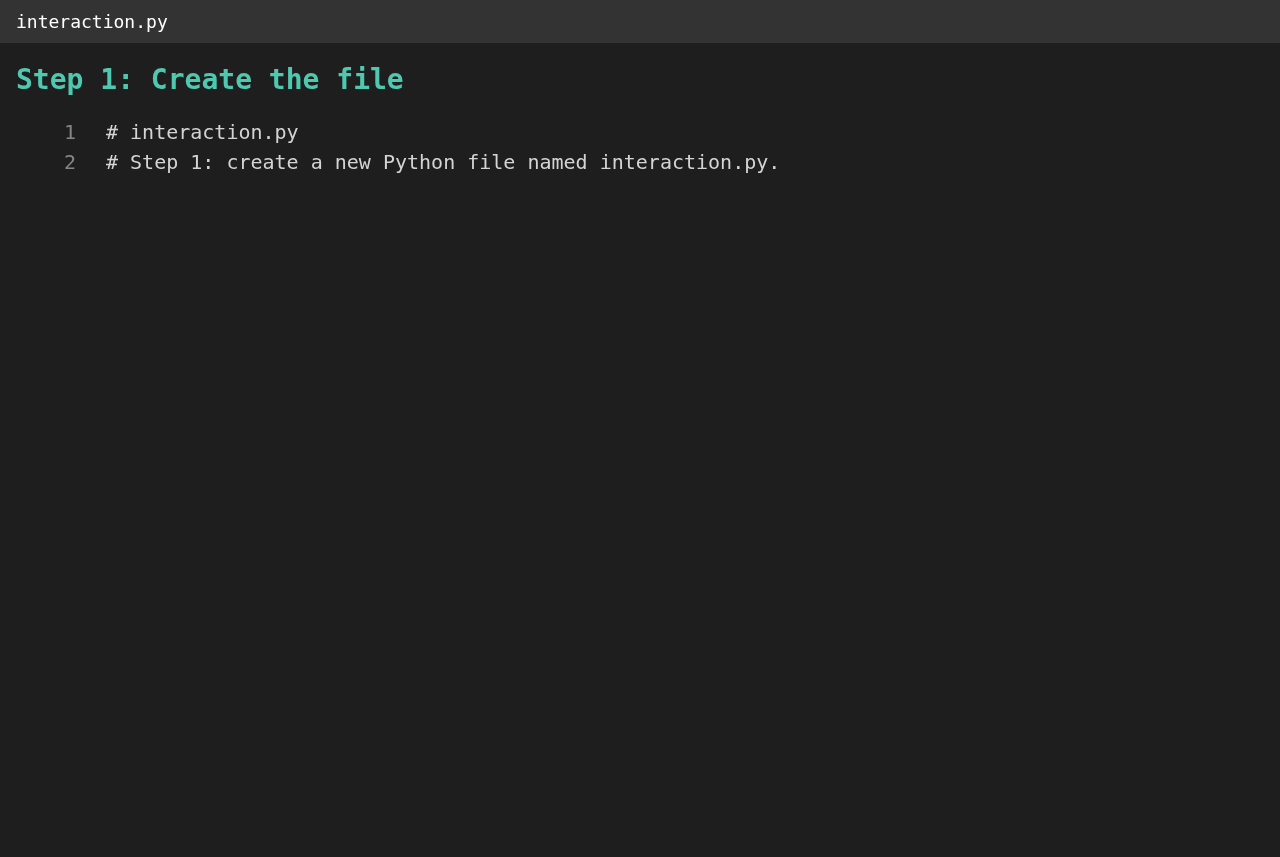
## Trin 1: Opret `interaction.py`
|
||||||
|
|
||||||
|
|
||||||
|
|
||||||
|
```python
|
||||||
|
# interaction.py
|
||||||
|
```
|
||||||
|
|
||||||
|
**Det lærte vi:** et sted til scriptet. Én lille fil med ét formål er lettere at læse og sammenligne med andres løsninger end kode spredt over mange filer.
|
||||||
|
|
||||||
|
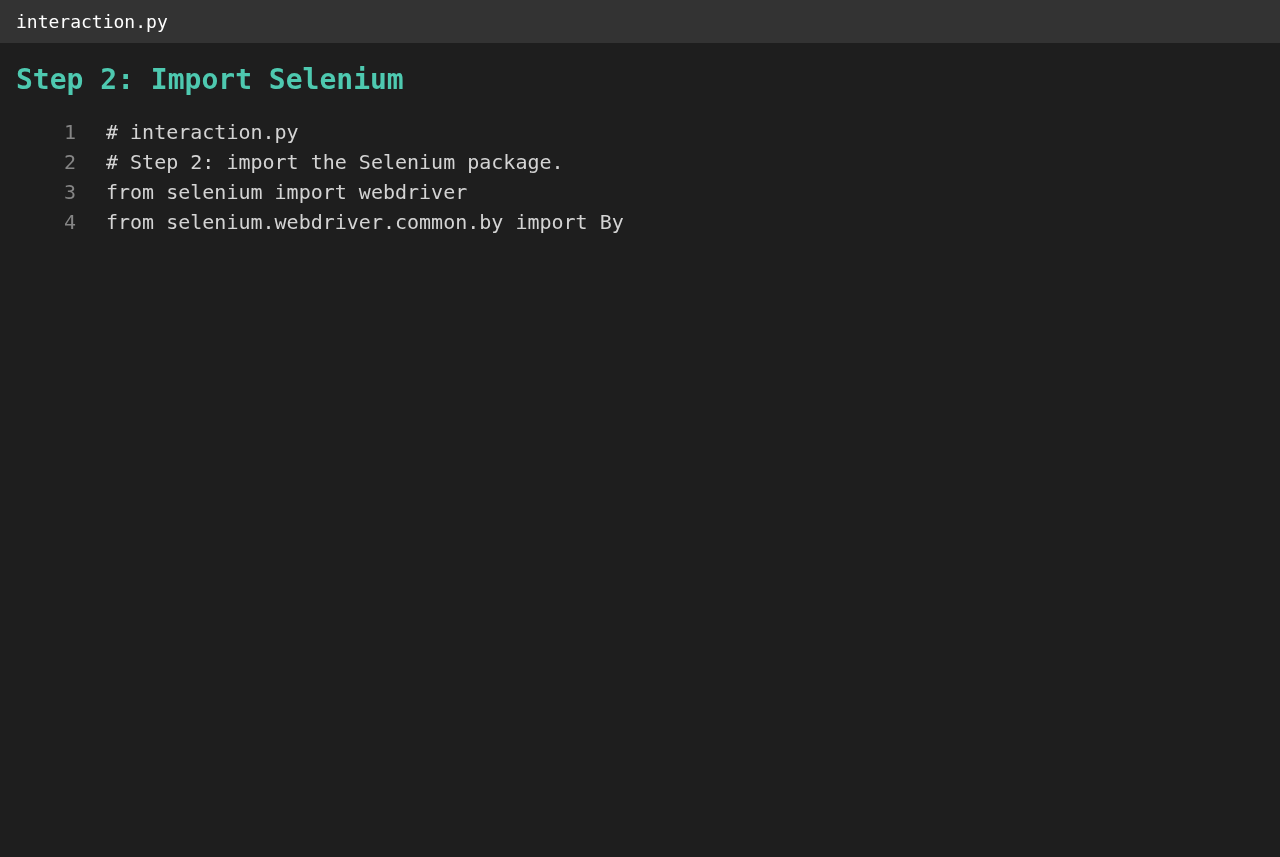
## Trin 2: Importér Selenium
|
||||||
|
|
||||||
|
|
||||||
|
|
||||||
|
```python
|
||||||
|
from selenium import webdriver
|
||||||
|
from selenium.webdriver.common.by import By
|
||||||
|
```
|
||||||
|
|
||||||
|
**Det lærte vi:** Selenium er en pakke, der styrer en rigtig browser fra Python. `webdriver` starter og styrer browseren; `By` angiver, hvordan et element findes (med CSS-selector, id, navn og så videre). Det er en tredjepartspakke, så den skal først installeres i `.venv`.
|
||||||
|
|
||||||
|
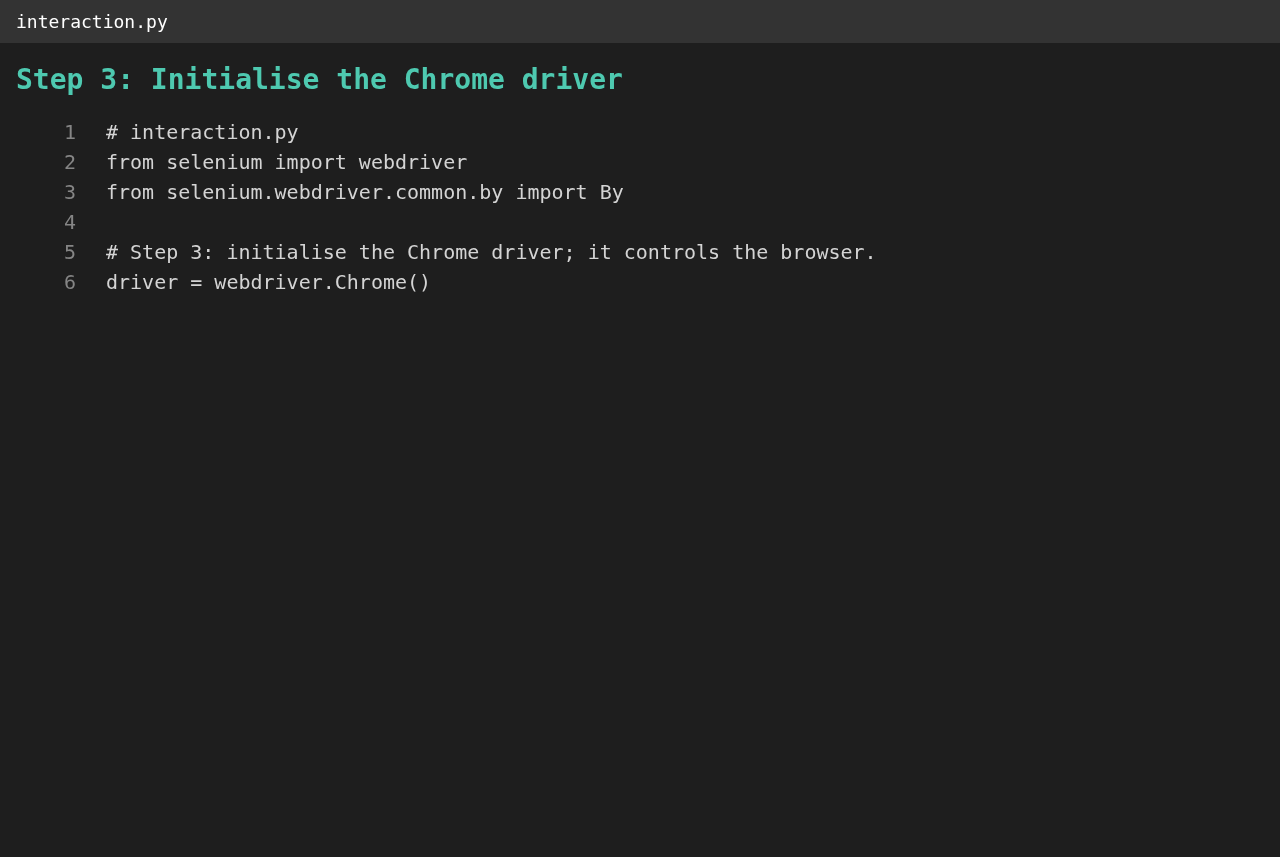
## Trin 3: Initialisér Chrome-driveren
|
||||||
|
|
||||||
|
|
||||||
|
|
||||||
|
```python
|
||||||
|
driver = webdriver.Chrome()
|
||||||
|
```
|
||||||
|
|
||||||
|
**Det lærte vi:** driveren er det objekt, som scriptet bruger til at styre Chrome: åbne sider, finde elementer og lukke browseren. Når den oprettes, åbner et rigtigt browservindue. I vores projekt er det `create_driver()`, som også kan starte Chrome uden vindue (`--headless`) til Docker.
|
||||||
|
|
||||||
|
## Trin 4: Gå til Wikipedia med `get()`
|
||||||
|
|
||||||
|
|
||||||
|
|
||||||
|
```python
|
||||||
|
driver.get("https://en.wikipedia.org/wiki/Main_Page")
|
||||||
|
```
|
||||||
|
|
||||||
|
**Det lærte vi:** `get()` henter en URL og venter, til siden er indlæst. URL'en er en konstant (`WIKIPEDIA_MAIN_PAGE_URL` i `constants.py`), så den står ét sted. I vores projekt er det `open_main_page()`.
|
||||||
|
|
||||||
|
## Trin 5: Find HTML-elementet
|
||||||
|
|
||||||
|
|
||||||
|
|
||||||
|
```python
|
||||||
|
# The article count is the anchor (a) inside the div whose id is "articlecount":
|
||||||
|
# #articlecount a
|
||||||
|
```
|
||||||
|
|
||||||
|
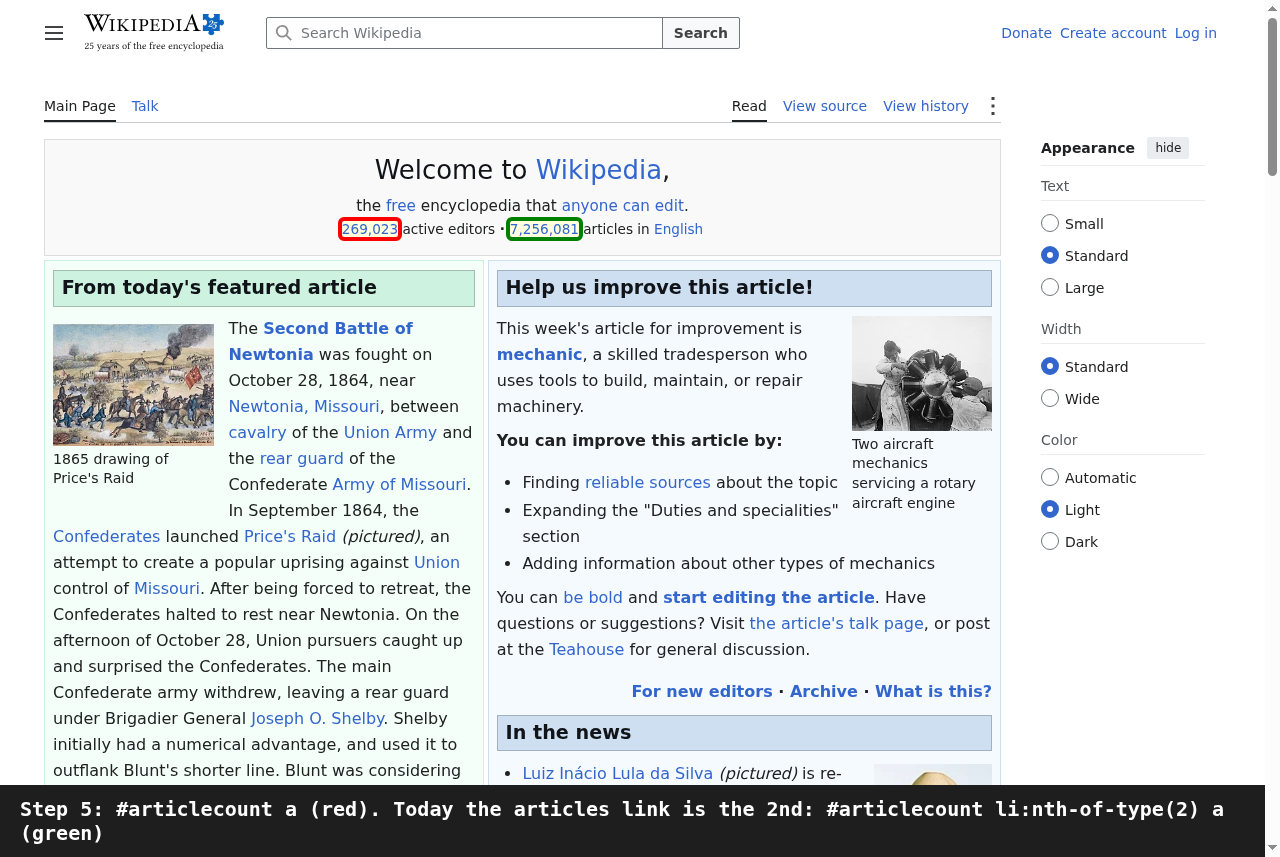
**Det lærte vi:** før man scraper, kigger man på sidens HTML (browserens udviklerværktøjer viser den) og finder et element, der sikkert kan skelnes fra resten. Et `id` er unikt på en side, så `#articlecount` er et godt ankerpunkt for en CSS-selector, og `a` vælger linket indeni.
|
||||||
|
|
||||||
|
**En lektion fra 2026:** Wikipedia har siden tilføjet et andet link i den `div`. Det første match (rødt på skærmbilledet) er nu antallet af aktive redaktører, og artikeltallet (grønt) er det første link i det andet listepunkt: `#articlecount li:nth-of-type(2) a`. Programmet bruger den selector (`ARTICLE_COUNT_SELECTOR`) og beholder lektionens selector som `LECTURE_SELECTOR`. Sider ændrer sig; en selector skal kontrolleres mod siden, og end to end-testen kontrollerer, at det udskrevne tal er mindst en million.
|
||||||
|
|
||||||
|
## Trin 6: Find elementet og udskriv dets tekst
|
||||||
|
|
||||||
|
|
||||||
|
|
||||||
|
```python
|
||||||
|
article_count = driver.find_element(By.CSS_SELECTOR, "#articlecount a")
|
||||||
|
print(article_count.text)
|
||||||
|
|
||||||
|
driver.quit()
|
||||||
|
```
|
||||||
|
|
||||||
|
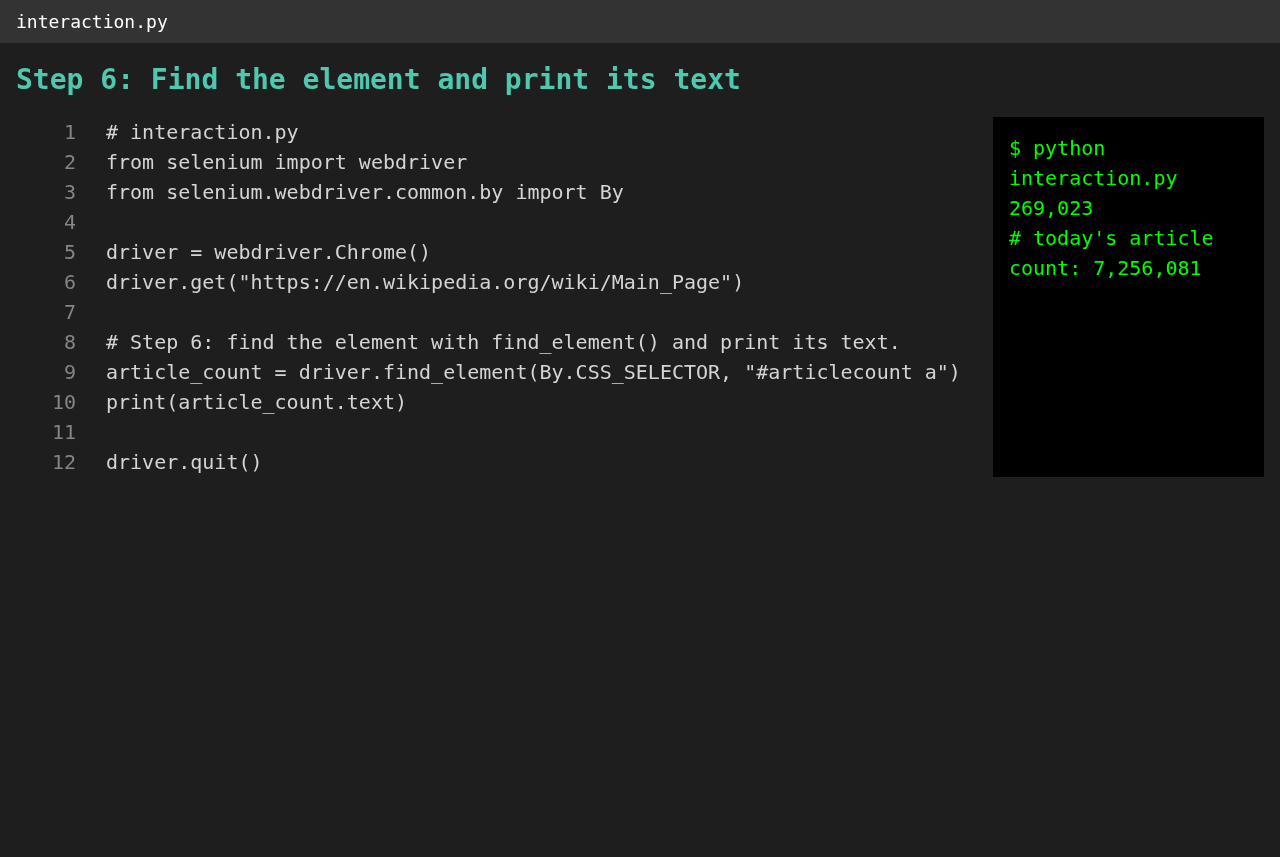
**Det lærte vi:** `find_element` returnerer det første element, der passer, og `.text` giver den tekst, en besøgende ser. `driver.quit()` lukker browseren; vores `main()` gør det i en `finally`-blok, så browseren lukkes, selv hvis noget fejler. Terminalpanelet på skærmbilledet viser, hvad lektionens selector returnerer i dag, og under det det rigtige artikeltal.
|
||||||
|
|
||||||
|
## Trin 7: Hvad kommer næste gang
|
||||||
|
|
||||||
|
|
||||||
|
|
||||||
|
```python
|
||||||
|
# article_count.click() # click a link
|
||||||
|
# search = driver.find_element(By.NAME, "search") # type into a search field
|
||||||
|
```
|
||||||
|
|
||||||
|
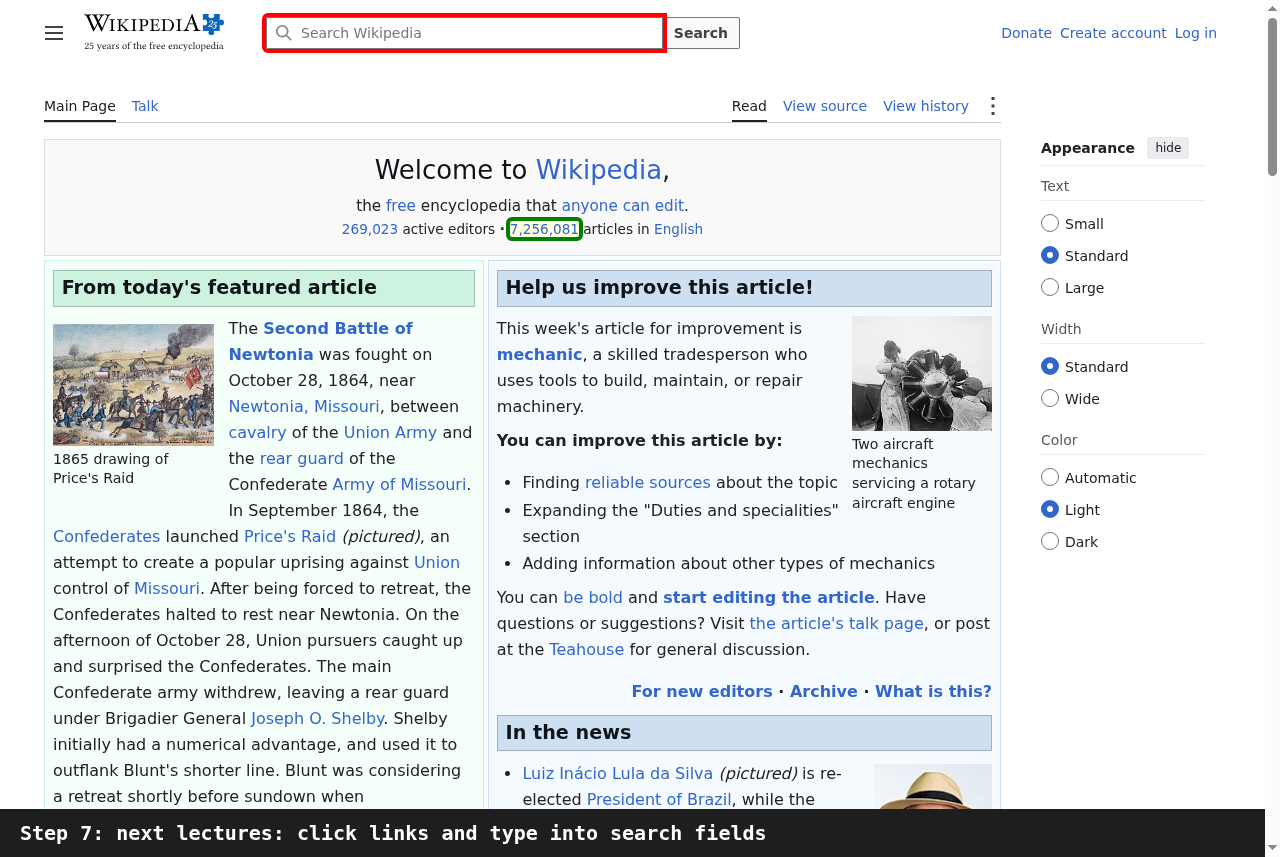
**Det lærte vi:** at læse er kun halvdelen. De næste lektioner klikker på links og skriver i felter som søgefeltet (markeret på skærmbilledet). De samme to ideer gælder: find elementet med en selector, og handl så på det.
|
||||||
@@ -0,0 +1,83 @@
|
|||||||
|
# Langkah Kuliah
|
||||||
|
|
||||||
|
🌐 [English](Lecture-Steps) · [Dansk](Lecture-Steps-da) · **Bahasa Malaysia**
|
||||||
|
|
||||||
|
Kuliah membina `interaction.py` dalam tujuh langkah. Setiap langkah di bawah mempunyai tangkapan skrinnya, kod selepas langkah itu dan apa yang kita dapat.
|
||||||
|
|
||||||
|
## Langkah 1: Cipta `interaction.py`
|
||||||
|
|
||||||
|

|
||||||
|
|
||||||
|
```python
|
||||||
|
# interaction.py
|
||||||
|
```
|
||||||
|
|
||||||
|
**Apa yang kita dapat:** tempat untuk skrip. Satu fail kecil dengan satu tujuan lebih mudah dibaca dan dibandingkan dengan penyelesaian orang lain berbanding kod yang bertaburan dalam banyak fail.
|
||||||
|
|
||||||
|
## Langkah 2: Import Selenium
|
||||||
|
|
||||||
|

|
||||||
|
|
||||||
|
```python
|
||||||
|
from selenium import webdriver
|
||||||
|
from selenium.webdriver.common.by import By
|
||||||
|
```
|
||||||
|
|
||||||
|
**Apa yang kita dapat:** Selenium ialah pakej yang mengawal pelayar sebenar daripada Python. `webdriver` memulakan dan mengawal pelayar; `By` menyatakan cara mencari elemen (dengan pemilih CSS, id, nama dan sebagainya). Ia pakej pihak ketiga, jadi ia mesti dipasang dahulu dalam `.venv`.
|
||||||
|
|
||||||
|
## Langkah 3: Mulakan pemandu Chrome
|
||||||
|
|
||||||
|

|
||||||
|
|
||||||
|
```python
|
||||||
|
driver = webdriver.Chrome()
|
||||||
|
```
|
||||||
|
|
||||||
|
**Apa yang kita dapat:** pemandu (driver) ialah objek yang digunakan skrip untuk mengawal Chrome: membuka halaman, mencari elemen dan menutup pelayar. Apabila dicipta, tetingkap pelayar sebenar dibuka. Dalam projek kita ini ialah `create_driver()`, yang juga boleh memulakan Chrome tanpa tetingkap (`--headless`) untuk Docker.
|
||||||
|
|
||||||
|
## Langkah 4: Pergi ke Wikipedia dengan `get()`
|
||||||
|
|
||||||
|

|
||||||
|
|
||||||
|
```python
|
||||||
|
driver.get("https://en.wikipedia.org/wiki/Main_Page")
|
||||||
|
```
|
||||||
|
|
||||||
|
**Apa yang kita dapat:** `get()` memuatkan URL dan menunggu sehingga halaman siap dimuatkan. URL ialah pemalar (`WIKIPEDIA_MAIN_PAGE_URL` dalam `constants.py`), jadi ia ditulis di satu tempat sahaja. Dalam projek kita ini ialah `open_main_page()`.
|
||||||
|
|
||||||
|
## Langkah 5: Kenal pasti elemen HTML
|
||||||
|
|
||||||
|

|
||||||
|
|
||||||
|
```python
|
||||||
|
# The article count is the anchor (a) inside the div whose id is "articlecount":
|
||||||
|
# #articlecount a
|
||||||
|
```
|
||||||
|
|
||||||
|
**Apa yang kita dapat:** sebelum mengikis (scraping) data, lihat HTML halaman (alat pembangun pelayar menunjukkannya) dan cari elemen yang boleh dibezakan dengan pasti. Sesuatu `id` adalah unik pada satu halaman, jadi `#articlecount` ialah titik tolak yang baik untuk pemilih CSS, dan `a` memilih pautan di dalamnya.
|
||||||
|
|
||||||
|
**Satu pengajaran dari 2026:** Wikipedia kemudian menambah pautan kedua dalam `div` itu. Padanan pertama (merah pada tangkapan skrin) kini ialah bilangan penyunting aktif, dan bilangan artikel (hijau) ialah pautan pertama dalam item senarai kedua: `#articlecount li:nth-of-type(2) a`. Program menggunakan pemilih itu (`ARTICLE_COUNT_SELECTOR`) dan mengekalkan pemilih kuliah sebagai `LECTURE_SELECTOR`. Halaman berubah; pemilih mesti disemak terhadap halaman, dan ujian end to end menyemak bahawa nombor yang dicetak sekurang-kurangnya satu juta.
|
||||||
|
|
||||||
|
## Langkah 6: Cari elemen dan cetak teksnya
|
||||||
|
|
||||||
|

|
||||||
|
|
||||||
|
```python
|
||||||
|
article_count = driver.find_element(By.CSS_SELECTOR, "#articlecount a")
|
||||||
|
print(article_count.text)
|
||||||
|
|
||||||
|
driver.quit()
|
||||||
|
```
|
||||||
|
|
||||||
|
**Apa yang kita dapat:** `find_element` mengembalikan elemen pertama yang sepadan dan `.text` memberi teks yang dilihat pelawat. `driver.quit()` menutup pelayar; `main()` kita melakukannya dalam blok `finally` supaya pelayar ditutup walaupun sesuatu gagal. Panel terminal pada tangkapan skrin menunjukkan apa yang dikembalikan oleh pemilih kuliah hari ini dan, di bawahnya, bilangan artikel yang sebenar.
|
||||||
|
|
||||||
|
## Langkah 7: Apa yang menyusul
|
||||||
|
|
||||||
|

|
||||||
|
|
||||||
|
```python
|
||||||
|
# article_count.click() # click a link
|
||||||
|
# search = driver.find_element(By.NAME, "search") # type into a search field
|
||||||
|
```
|
||||||
|
|
||||||
|
**Apa yang kita dapat:** membaca hanyalah separuh daripadanya. Kuliah seterusnya mengklik pautan dan menaip dalam medan seperti kotak carian (ditandakan pada tangkapan skrin). Dua idea yang sama digunakan: cari elemen dengan pemilih, kemudian bertindak ke atasnya.
|
||||||
@@ -0,0 +1,83 @@
|
|||||||
|
# Lecture Steps
|
||||||
|
|
||||||
|
🌐 **English** · [Dansk](Lecture-Steps-da) · [Bahasa Malaysia](Lecture-Steps-ms)
|
||||||
|
|
||||||
|
The lecture builds `interaction.py` in seven steps. Each step below has its screenshot, the code as it stands after the step, and what we gained.
|
||||||
|
|
||||||
|
## Step 1: Create `interaction.py`
|
||||||
|
|
||||||
|

|
||||||
|
|
||||||
|
```python
|
||||||
|
# interaction.py
|
||||||
|
```
|
||||||
|
|
||||||
|
**What we gained:** a place for the script. One small file with one purpose is easier to read and to compare with other solutions than code spread over many files.
|
||||||
|
|
||||||
|
## Step 2: Import Selenium
|
||||||
|
|
||||||
|

|
||||||
|
|
||||||
|
```python
|
||||||
|
from selenium import webdriver
|
||||||
|
from selenium.webdriver.common.by import By
|
||||||
|
```
|
||||||
|
|
||||||
|
**What we gained:** Selenium is a package that controls a real browser from Python. `webdriver` starts and drives the browser; `By` says how to look for an element (by CSS selector, id, name and so on). It is a third-party package, so it must be installed in the `.venv` first.
|
||||||
|
|
||||||
|
## Step 3: Initialise the Chrome driver
|
||||||
|
|
||||||
|

|
||||||
|
|
||||||
|
```python
|
||||||
|
driver = webdriver.Chrome()
|
||||||
|
```
|
||||||
|
|
||||||
|
**What we gained:** the driver is the object through which the script controls Chrome: opening pages, finding elements and closing the browser. Creating it opens a real browser window. In our project this is `create_driver()`, which can also start Chrome without a window (`--headless`) for Docker.
|
||||||
|
|
||||||
|
## Step 4: Navigate to Wikipedia with `get()`
|
||||||
|
|
||||||
|

|
||||||
|
|
||||||
|
```python
|
||||||
|
driver.get("https://en.wikipedia.org/wiki/Main_Page")
|
||||||
|
```
|
||||||
|
|
||||||
|
**What we gained:** `get()` loads a URL and waits until the page has loaded. The URL is a constant (`WIKIPEDIA_MAIN_PAGE_URL` in `constants.py`), so it is written in one place. In our project this is `open_main_page()`.
|
||||||
|
|
||||||
|
## Step 5: Identify the HTML element
|
||||||
|
|
||||||
|

|
||||||
|
|
||||||
|
```python
|
||||||
|
# The article count is the anchor (a) inside the div whose id is "articlecount":
|
||||||
|
# #articlecount a
|
||||||
|
```
|
||||||
|
|
||||||
|
**What we gained:** before scraping, look at the page's HTML (the browser's developer tools show it) and find an element that can be told apart reliably. An `id` is unique on a page, so `#articlecount` is a good anchor for a CSS selector, and `a` selects the link inside it.
|
||||||
|
|
||||||
|
**A lesson from 2026:** Wikipedia has since added a second link in that `div`. The first match (red in the screenshot) is now the number of active editors, and the article count (green) is the first link of the second list item: `#articlecount li:nth-of-type(2) a`. The program uses that selector (`ARTICLE_COUNT_SELECTOR`) and keeps the lecture's selector as `LECTURE_SELECTOR`. Pages change; a selector must be checked against the page, and the end to end test checks that the printed number is at least one million.
|
||||||
|
|
||||||
|
## Step 6: Find the element and print its text
|
||||||
|
|
||||||
|

|
||||||
|
|
||||||
|
```python
|
||||||
|
article_count = driver.find_element(By.CSS_SELECTOR, "#articlecount a")
|
||||||
|
print(article_count.text)
|
||||||
|
|
||||||
|
driver.quit()
|
||||||
|
```
|
||||||
|
|
||||||
|
**What we gained:** `find_element` returns the first element that matches and `.text` gives the text a visitor sees. `driver.quit()` closes the browser; our `main()` does it in a `finally` block so the browser closes even when something fails. The terminal panel in the screenshot shows what the lecture selector returns today and, below it, the real article count.
|
||||||
|
|
||||||
|
## Step 7: What comes next
|
||||||
|
|
||||||
|

|
||||||
|
|
||||||
|
```python
|
||||||
|
# article_count.click() # click a link
|
||||||
|
# search = driver.find_element(By.NAME, "search") # type into a search field
|
||||||
|
```
|
||||||
|
|
||||||
|
**What we gained:** reading is only half of it. The next lectures click links and type into fields such as the search box (outlined in the screenshot). The same two ideas carry over: find the element with a selector, then act on it.
|
||||||
@@ -0,0 +1,67 @@
|
|||||||
|
# Opsætning og kørsel
|
||||||
|
|
||||||
|
🌐 [English](Setup-and-Run) · **Dansk** · [Bahasa Malaysia](Setup-and-Run-ms)
|
||||||
|
|
||||||
|
## Krav
|
||||||
|
|
||||||
|
- Python 3.13 eller nyere
|
||||||
|
- Google Chrome (Selenium henter den passende driver)
|
||||||
|
- Valgfrit: Docker til end to end-kørslen; Doxygen til API-dokumentationen
|
||||||
|
|
||||||
|
## Opret og brug et lokalt `.venv`
|
||||||
|
|
||||||
|
```bash
|
||||||
|
python -m venv .venv
|
||||||
|
```
|
||||||
|
|
||||||
|
Aktivér det:
|
||||||
|
|
||||||
|
```bash
|
||||||
|
# Windows (PowerShell)
|
||||||
|
.venv\Scripts\Activate.ps1
|
||||||
|
|
||||||
|
# Windows (Git Bash)
|
||||||
|
source .venv/Scripts/activate
|
||||||
|
|
||||||
|
# Linux / macOS
|
||||||
|
source .venv/bin/activate
|
||||||
|
```
|
||||||
|
|
||||||
|
Opgradér pip og installér projektet med testværktøjerne:
|
||||||
|
|
||||||
|
```bash
|
||||||
|
python -m pip install --upgrade pip
|
||||||
|
python -m pip install -e ".[dev]"
|
||||||
|
```
|
||||||
|
|
||||||
|
Forlad miljøet med `deactivate`.
|
||||||
|
|
||||||
|
## Kør
|
||||||
|
|
||||||
|
```bash
|
||||||
|
python -m scraping_wiki.interaction
|
||||||
|
```
|
||||||
|
|
||||||
|
Chrome åbner, Wikipedias forside indlæses, artikeltallet udskrives, og browseren lukkes. Tilføj `--headless` for at køre uden vindue:
|
||||||
|
|
||||||
|
```bash
|
||||||
|
scraping-wiki --headless
|
||||||
|
```
|
||||||
|
|
||||||
|
## Test
|
||||||
|
|
||||||
|
```bash
|
||||||
|
python -m pytest
|
||||||
|
python -m ruff check src tests
|
||||||
|
python -m mypy src tests
|
||||||
|
```
|
||||||
|
|
||||||
|
Enhedstestene bruger en falsk driver og starter ingen browser. End to end-kørslen står under [Test i Docker](Docker-Testing-da).
|
||||||
|
|
||||||
|
## API-dokumentation
|
||||||
|
|
||||||
|
```bash
|
||||||
|
doxygen Doxyfile
|
||||||
|
```
|
||||||
|
|
||||||
|
HTML skrives til `docs/doxygen/html`.
|
||||||
@@ -0,0 +1,67 @@
|
|||||||
|
# Persediaan dan Jalankan
|
||||||
|
|
||||||
|
🌐 [English](Setup-and-Run) · [Dansk](Setup-and-Run-da) · **Bahasa Malaysia**
|
||||||
|
|
||||||
|
## Keperluan
|
||||||
|
|
||||||
|
- Python 3.13 atau lebih baharu
|
||||||
|
- Google Chrome (Selenium memuat turun pemandu yang sepadan)
|
||||||
|
- Pilihan: Docker untuk larian end to end; Doxygen untuk dokumentasi API
|
||||||
|
|
||||||
|
## Cipta dan guna `.venv` setempat
|
||||||
|
|
||||||
|
```bash
|
||||||
|
python -m venv .venv
|
||||||
|
```
|
||||||
|
|
||||||
|
Aktifkannya:
|
||||||
|
|
||||||
|
```bash
|
||||||
|
# Windows (PowerShell)
|
||||||
|
.venv\Scripts\Activate.ps1
|
||||||
|
|
||||||
|
# Windows (Git Bash)
|
||||||
|
source .venv/Scripts/activate
|
||||||
|
|
||||||
|
# Linux / macOS
|
||||||
|
source .venv/bin/activate
|
||||||
|
```
|
||||||
|
|
||||||
|
Naik taraf pip dan pasang projek bersama alat ujian:
|
||||||
|
|
||||||
|
```bash
|
||||||
|
python -m pip install --upgrade pip
|
||||||
|
python -m pip install -e ".[dev]"
|
||||||
|
```
|
||||||
|
|
||||||
|
Keluar daripada persekitaran dengan `deactivate`.
|
||||||
|
|
||||||
|
## Jalankan
|
||||||
|
|
||||||
|
```bash
|
||||||
|
python -m scraping_wiki.interaction
|
||||||
|
```
|
||||||
|
|
||||||
|
Chrome dibuka, halaman utama Wikipedia dimuatkan, bilangan artikel dicetak dan pelayar ditutup. Tambah `--headless` untuk berjalan tanpa tetingkap:
|
||||||
|
|
||||||
|
```bash
|
||||||
|
scraping-wiki --headless
|
||||||
|
```
|
||||||
|
|
||||||
|
## Ujian
|
||||||
|
|
||||||
|
```bash
|
||||||
|
python -m pytest
|
||||||
|
python -m ruff check src tests
|
||||||
|
python -m mypy src tests
|
||||||
|
```
|
||||||
|
|
||||||
|
Ujian unit menggunakan pemandu palsu dan tidak memulakan pelayar. Untuk larian end to end lihat [Ujian dalam Docker](Docker-Testing-ms).
|
||||||
|
|
||||||
|
## Dokumentasi API
|
||||||
|
|
||||||
|
```bash
|
||||||
|
doxygen Doxyfile
|
||||||
|
```
|
||||||
|
|
||||||
|
HTML ditulis ke `docs/doxygen/html`.
|
||||||
@@ -0,0 +1,67 @@
|
|||||||
|
# Setup and Run
|
||||||
|
|
||||||
|
🌐 **English** · [Dansk](Setup-and-Run-da) · [Bahasa Malaysia](Setup-and-Run-ms)
|
||||||
|
|
||||||
|
## Requirements
|
||||||
|
|
||||||
|
- Python 3.13 or newer
|
||||||
|
- Google Chrome (Selenium downloads the matching driver)
|
||||||
|
- Optional: Docker, for the end to end run; Doxygen, for the API documentation
|
||||||
|
|
||||||
|
## Create and use a local `.venv`
|
||||||
|
|
||||||
|
```bash
|
||||||
|
python -m venv .venv
|
||||||
|
```
|
||||||
|
|
||||||
|
Activate it:
|
||||||
|
|
||||||
|
```bash
|
||||||
|
# Windows (PowerShell)
|
||||||
|
.venv\Scripts\Activate.ps1
|
||||||
|
|
||||||
|
# Windows (Git Bash)
|
||||||
|
source .venv/Scripts/activate
|
||||||
|
|
||||||
|
# Linux / macOS
|
||||||
|
source .venv/bin/activate
|
||||||
|
```
|
||||||
|
|
||||||
|
Upgrade pip and install the project with the test tools:
|
||||||
|
|
||||||
|
```bash
|
||||||
|
python -m pip install --upgrade pip
|
||||||
|
python -m pip install -e ".[dev]"
|
||||||
|
```
|
||||||
|
|
||||||
|
Leave the environment with `deactivate`.
|
||||||
|
|
||||||
|
## Run
|
||||||
|
|
||||||
|
```bash
|
||||||
|
python -m scraping_wiki.interaction
|
||||||
|
```
|
||||||
|
|
||||||
|
Chrome opens, loads the Wikipedia main page, the article count is printed and the browser closes. Add `--headless` to run without a window:
|
||||||
|
|
||||||
|
```bash
|
||||||
|
scraping-wiki --headless
|
||||||
|
```
|
||||||
|
|
||||||
|
## Tests
|
||||||
|
|
||||||
|
```bash
|
||||||
|
python -m pytest
|
||||||
|
python -m ruff check src tests
|
||||||
|
python -m mypy src tests
|
||||||
|
```
|
||||||
|
|
||||||
|
The unit tests use a fake driver and start no browser. For the end to end run see [Docker Testing](Docker-Testing).
|
||||||
|
|
||||||
|
## API documentation
|
||||||
|
|
||||||
|
```bash
|
||||||
|
doxygen Doxyfile
|
||||||
|
```
|
||||||
|
|
||||||
|
The HTML is written to `docs/doxygen/html`.
|
||||||
@@ -0,0 +1,16 @@
|
|||||||
|
**Scraping Wiki**
|
||||||
|
|
||||||
|
- [Home](Home)
|
||||||
|
- [Lecture Steps](Lecture-Steps)
|
||||||
|
- [Setup and Run](Setup-and-Run)
|
||||||
|
- [Docker Testing](Docker-Testing)
|
||||||
|
|
||||||
|
**Related**
|
||||||
|
|
||||||
|
- [Repository](https://git.tirsystem.com/Tirsvad-Udemy-100-days-of-code/048-scrapping-wiki)
|
||||||
|
|
||||||
|
**Languages**
|
||||||
|
|
||||||
|
- English: [Home](Home)
|
||||||
|
- Dansk: [Hjem](Home-da)
|
||||||
|
- Bahasa Malaysia: [Utama](Home-ms)
|
||||||
Reference in New Issue
Block a user